You may have reached a limit to what you can do on Duolingo. Serious leaners often use multiple sources to learn a language. Duolingo does not allow you to easily export or download your vocabulary or words list consisting of the words you've learned. To practice your words on Duolingo, you have to upgrade to one of their premium plans such as Duolingo Super or Duolingo Max.
But with the Hemiglot Browser Extension, you can download your words for Free and super-charge your language learning by uploading your words to sites like Quizlet or Ankicard.
Here's what we will be walking through in this tutorial, step by step.
Setting up the Hemiglot extension
First off, you will have to install the Hemiglot Browser Extension on your computer. You could do that from the Chrome Web Store. Click here to install the extension.
After installing the extension, click your extensions button, which appears as a puzzle icon on the top right of your screen. You will find a list of your extensions here. Find the extension named "Hemiglot - Duolingo Vocabulary Downloader" and click the pin icon to pin it.
Finding your words list
Open up Duolingo on your browser. Alternatively, you can open up the words tab on Duolingo from this link and skip straight to the next step. Its a good idea to bookmark this tab if you download your words frequently.
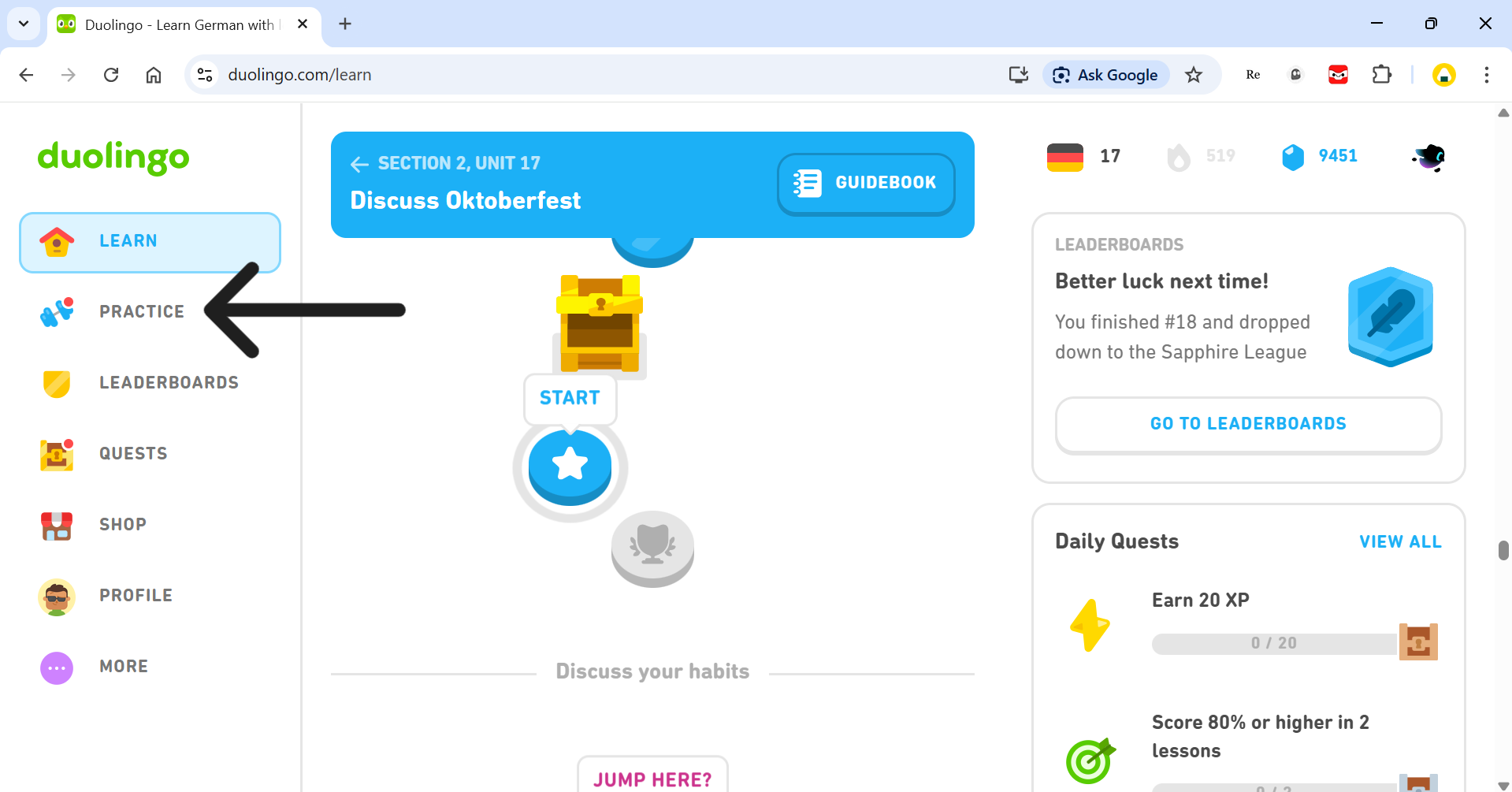
When you open up Duolingo, the page will look like this. Click on the 'Practice' button on the left menu.
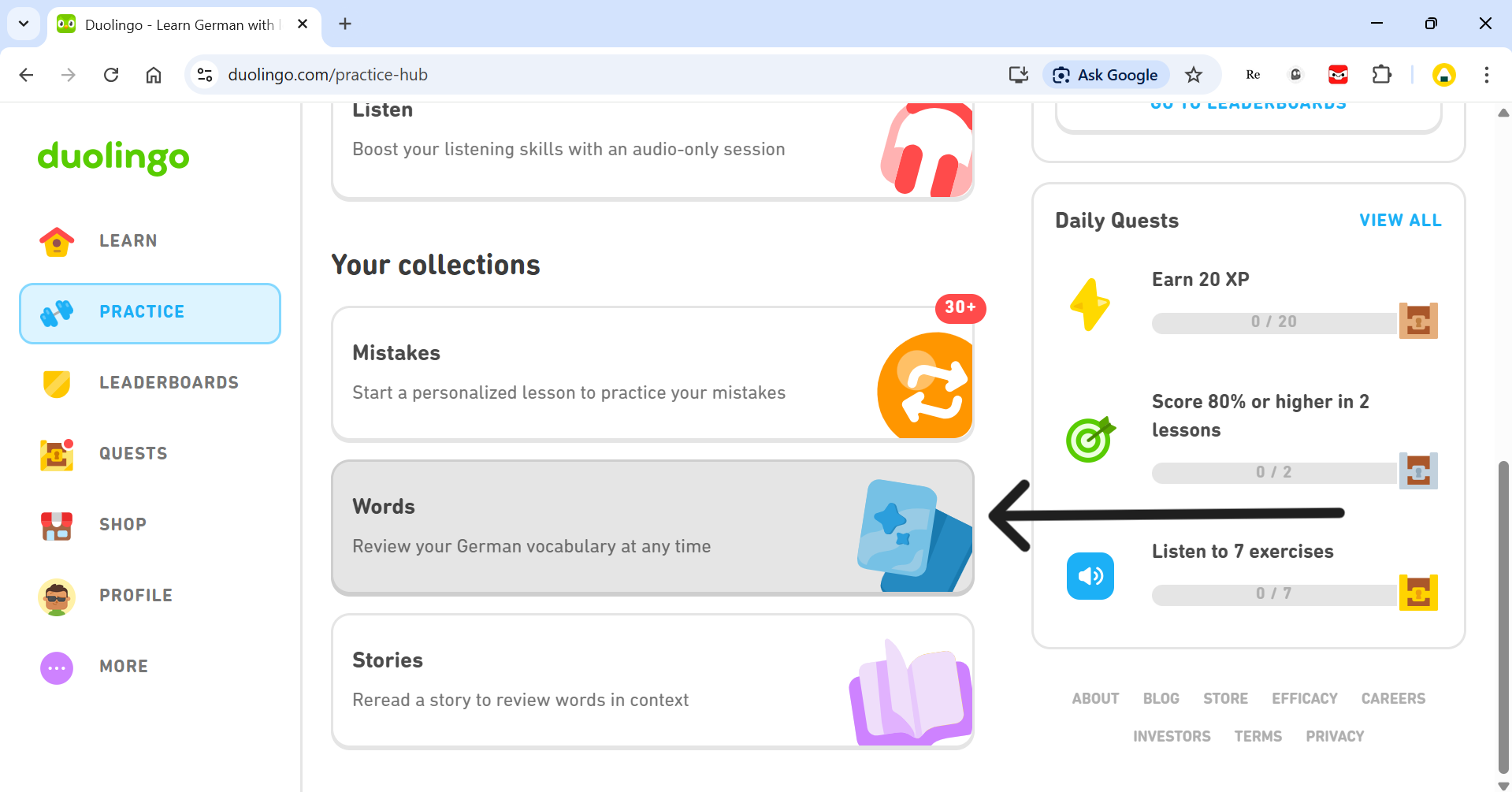
When I was fiddling around trying to find my words list, I assumed it would be in the Account section, but that isn't the case. After clicking on the 'Practice' button, your page will look like this. Click on the 'Words' button as shown.
If you don't see a words list, it means it is not provided by duolingo. There is no way to download it.
Downloading your words list
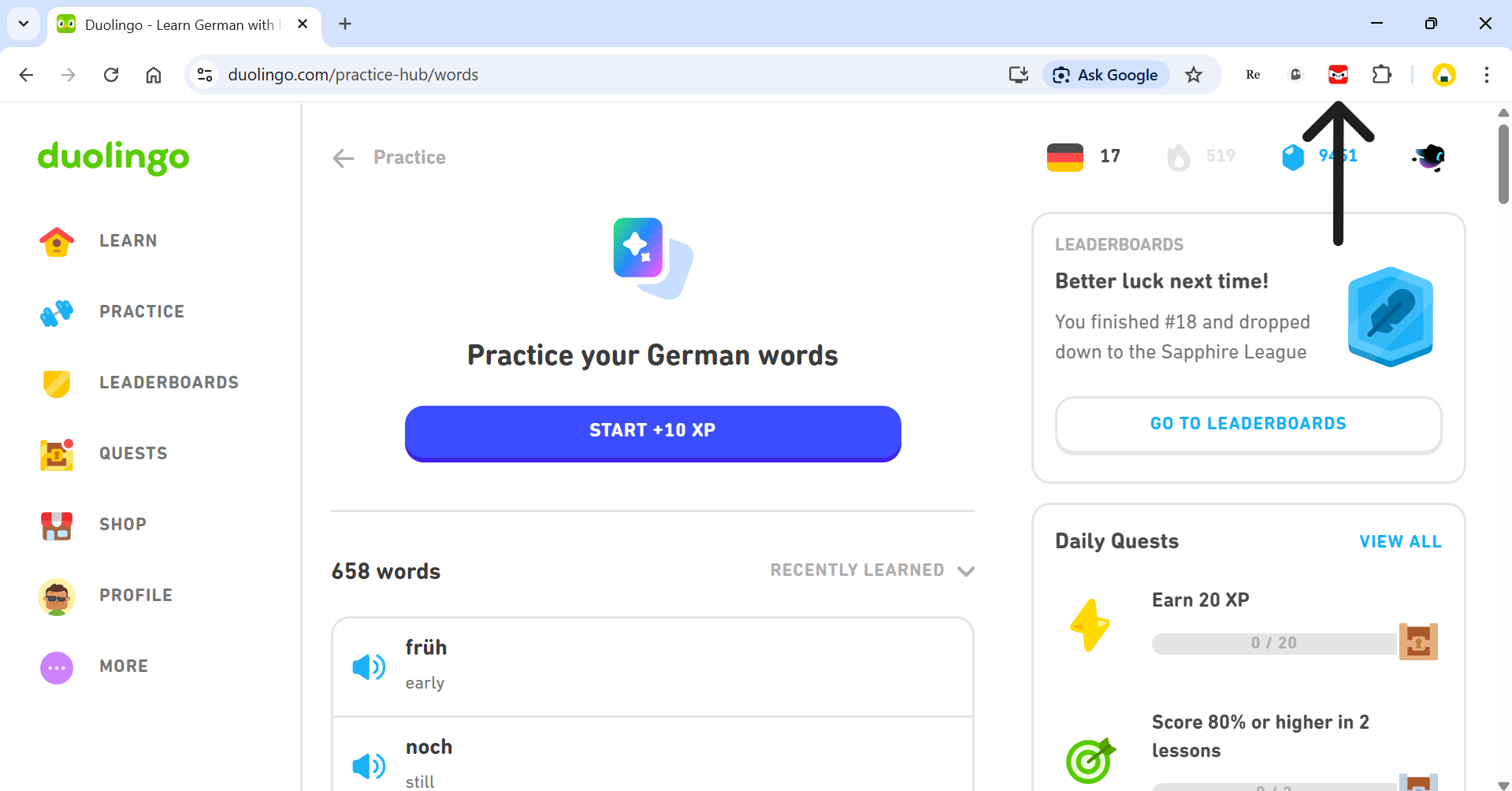
Now, for the grand finale. Its time to export your words. At the top right, next to the Extension 'puzzle' icon, you'll find the Hemiglot Browser Extension icon. Click it.
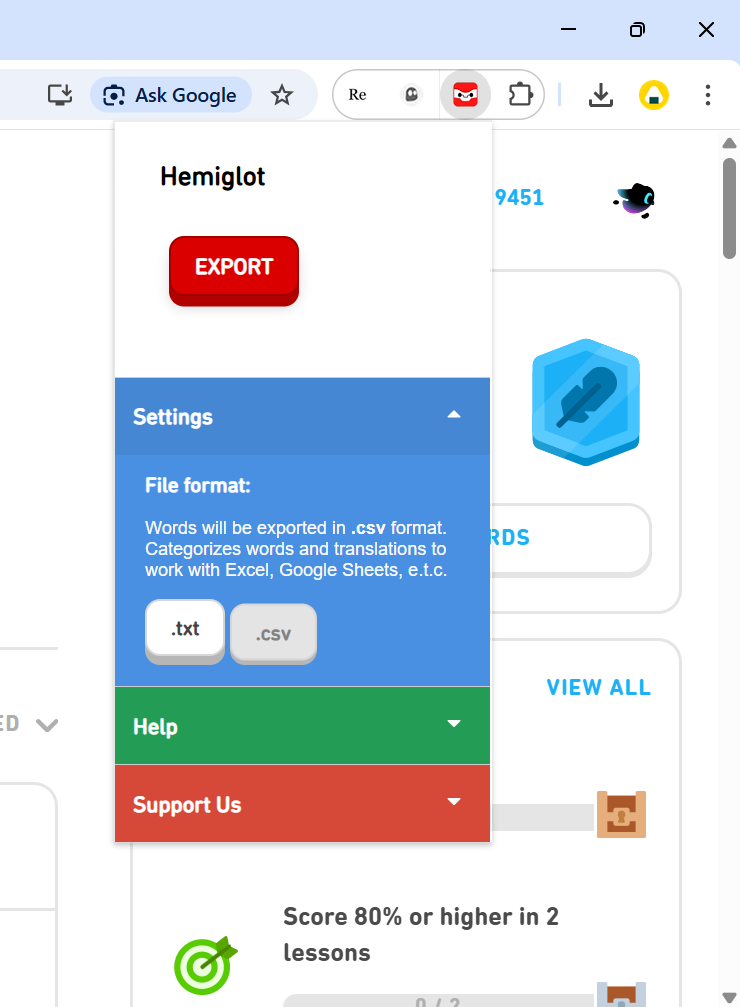
A popup will appear. You'll see a red button saying 'EXPORT'. Click the button and your words should start
downloading.
You do not have to manually click 'Load more' at the bottom of the page; the extension
does that for you.
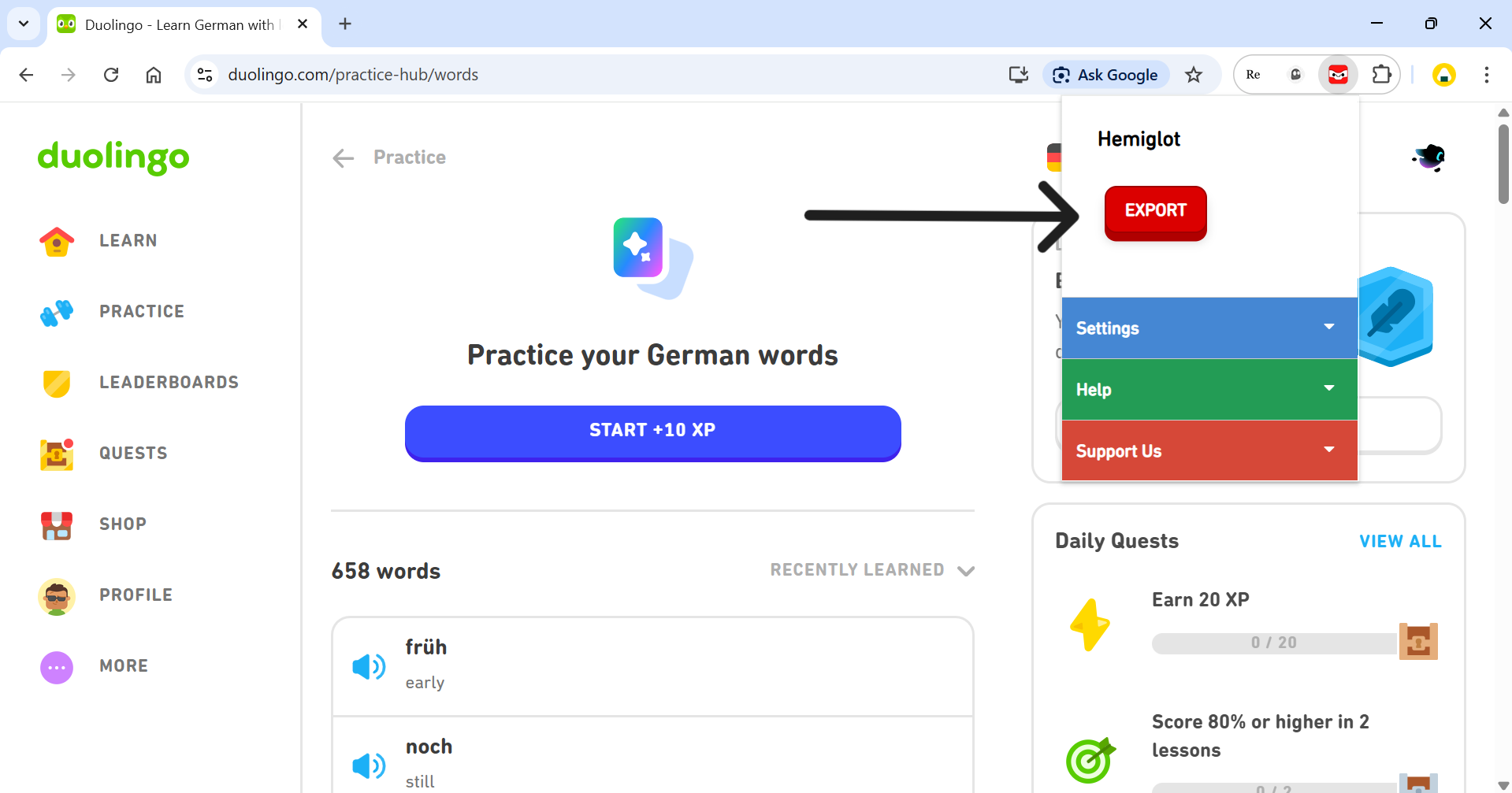
When exporting, we recommend to use .CSV mode. You can change this from the settings menu.
Problems with downloading words
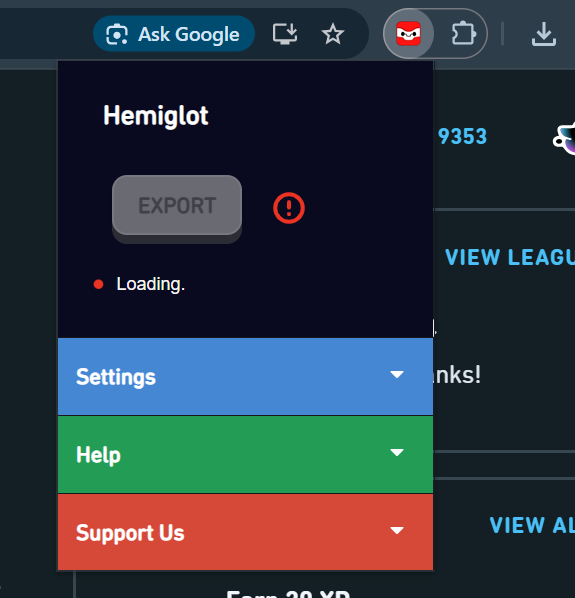
Maybe you encountered this. Problems will arise if the user does not wait for the page to load properly. Duolingo manually injects the words list onto the page. That means, it's better to wait for the page and the words list to load, before clicking the popup.
Check out solutions to errors, over here.
If this worked for you, consider leaving a review on the store!